
Congratulations on having acquired a CloudWatcher and a SOLO. Let's get you started right away! These are the steps you should follow to set up for the first time. Please note that if you are operating your CloudWatcher as a stand-alone device, we have another first steps guide for that.
- Unpack your CloudWatcher and SOLO. For the CloudWatcher, remove the plastic wrap and paper protecting it, and be careful not to touch the sensors. Do not remove the white coating.
- Attach the RS232 connector from the CloudWatcher to the socket on the SOLO (1 in the image).
- Connect the short power cable from the CloudWatcher's jack socket to the SOLO's power socket (number 2).
- Connect the SOLO to your network using a standard Ethernet cable (socket 3). If you wish to set up a Wi-Fi connection instead, you can reach out to us at support@lunaticoastro.com, and we will help you with that.
- Connect the SOLO to power using the power IN/OUT socket (number 4). The power supply should be 12 or 15 V, 1 A or more, centre-positive.
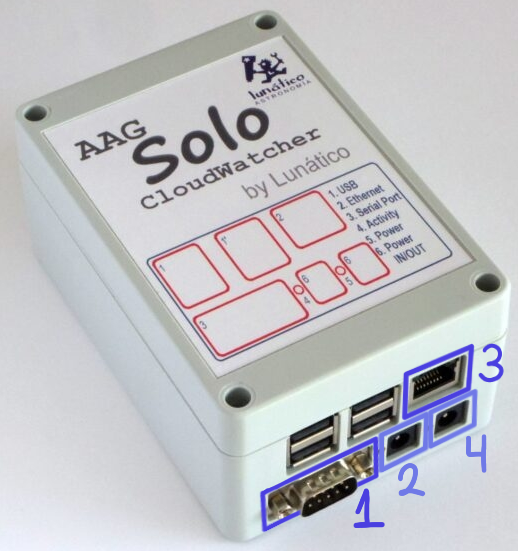
- By default, the SOLO uses DHCP to obtain an IP address from your network's router. You can view the output of the SOLO from any PC on the network by simply typing
http://aagsoloor, if you know it, the IP address that has been allocated to the SOLO. Please refer to the manual for instructions on allocating a static IP address to your SOLO.
And that's it! You've set up your CloudWatcher and SOLO. However, if you want to configure your Windows PC to read the CloudWatcher's data file, you can do this easily following the steps below.
Mapping the SOLO's data folder as a network drive
- Open the File Browser, select your computer on the left of the screen, and click on "Map network drive" in the File section.
- Select the desired drive letter or accept the default. Enter
\\aagsolo\aagsoloin the Folder section.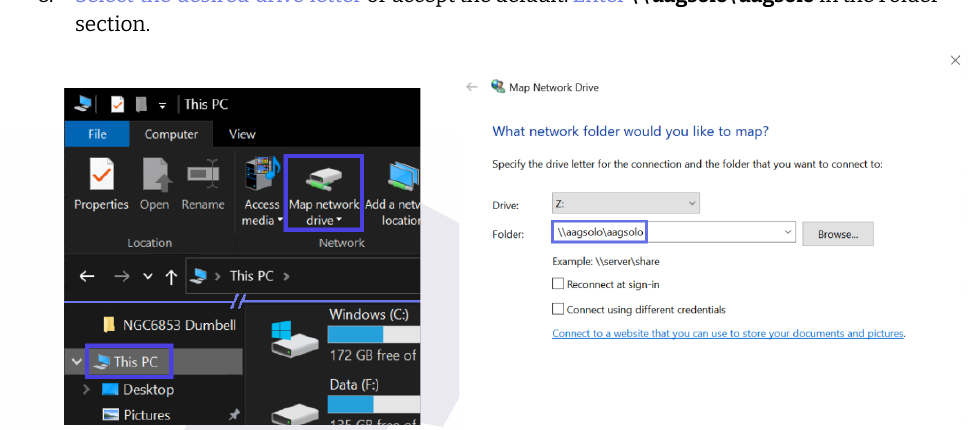
- Select the checkbox "Reconnect at sign-in" if you would like the drive to be mounted each time the computer starts.
- Click "Finish".
- If prompted to enter security details, enter the default password "cloudwatcher".
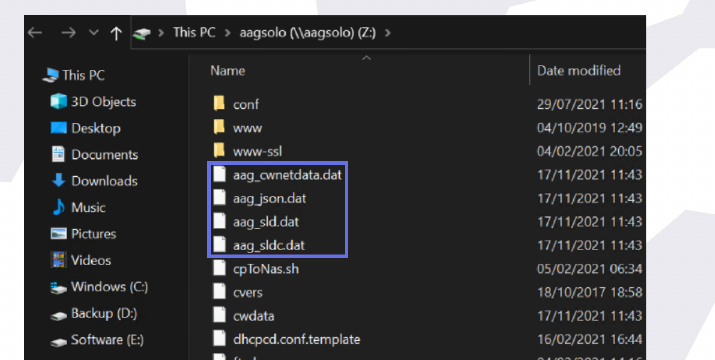
- You should now have access to the CloudWatcher data files as below:
If you require additional information to operate your CloudWatcher and/or SOLO, please refer to their manuals (CloudWatcher's manual, SOLO's manual) or to our YouTube playlist on the CloudWatcher.
If you are experiencing issues, be sure to check out our forum, or ultimately, reach out to us at support@lunaticoastro.com, and we'll be happy to help you out.
We hope you enjoy our products!