
Why is it useful?
This feature can allow us to check in with our device when we are not far from the CloudWatcher. This can be interesting for people with several observatories located close to one another that share one CloudWatcher, for example.
Configuring the master installation
In order to set up the remote mode, we first need to make the data files generated by the master installation discoverable by computers on the same network. To achieve this, we set a path in the "Parameters Transfer File" section, which you can find in the Setup tab, Network side tab.
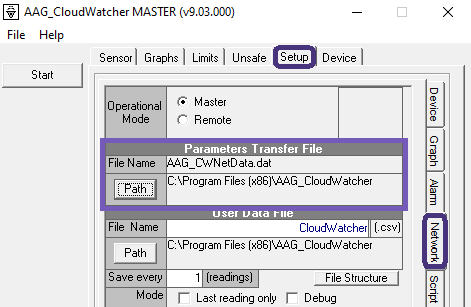
We will choose which folder to save the data in, and then give access to that folder to other computers on the network.
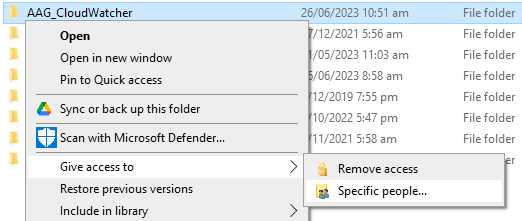
This process has changed throughout Windows history, but on Windows 10 and 11 it comes down to something along the lines of:
- Right-click on the desired folder.
- Select "Give access to".
- Select "Specific people".
- Choose the users we wish to have access to the data files.
Setting up the remote installations
Now that the folder is discoverable for the desired computers on the network, we have to finish setting up the remote operational mode on each of them. We will install the CloudWatcher software just like we did for our master installation, but this time select that it is a remote one.
In the same slot as before, we will select the path to the shared folder. It will also be interesting for us to copy the constants from our master installation, which we can easily do in the Setup tab, Device side tab.
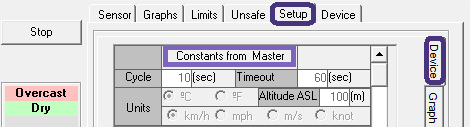
And with that, you should be ready to go. Just repeat the process on all the computers you wish to access the data from.
As usual, if you require further assistance, be sure to check our user forum. If you still have questions, feel free to reach out to us at support@lunaticoastro.com, and we will be happy to help you out.