
Quick diagnostics—is the device reachable?
Before diving into configuration, run two quick tests to determine whether the problem is hardware (the Dragonfly is not reachable at all) or software (the device is reachable but the communication protocol is failing).
Test 1—Open the web interface
Open a browser on the observatory PC and go to:
http://dragonflyIf the Dragonfly's built-in web page loads, the device is on the network and the hostname is resolving correctly. The problem is in the software communication layer; continue to the UDP port section below.
Test 2—Ping the device
Open a command prompt and run a continuous ping:
ping -t dragonflyIf the ping replies, the device is reachable. If it times out, the device is not being found on the network: check the physical connection (Ethernet cable, switch/router port) and try a different router port.
UDP port conflicts—the most common cause
The Dragonfly communicates over UDP on port 10000 by default. This is a well-known source of trouble in observatory setups because several popular devices also use port 10000, most notably IP cameras from Foscam, Dahua and similar brands.
The symptom is intermittent disconnections or a failure to receive data even though the device appears connected. This happens because the camera is answering on the same port, so the Dragonfly packets are being misrouted.
Network SQM (Sky Quality Meter) devices often use port 10001, which can cause the same issue if you have switched to that port as a workaround in the past.
How to fix port conflicts
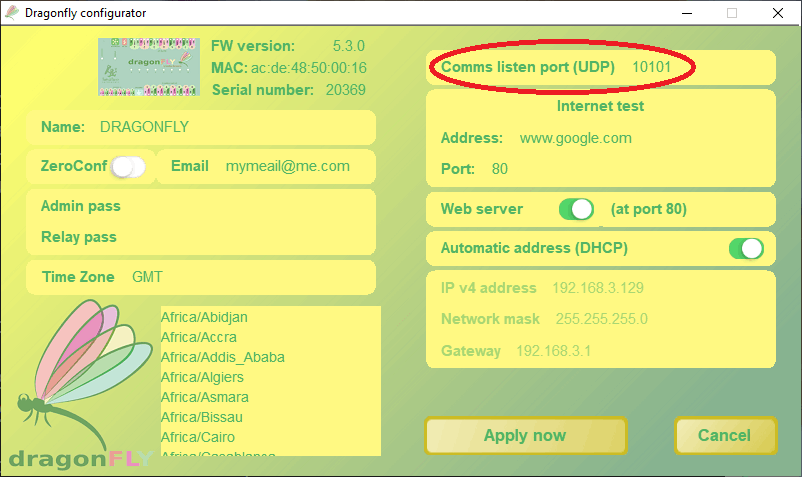
- Using the Dragonfly Configurator, set the Listen port of the Dragonfly to a different, higher number. So far we have heard of no problems using port 10101.
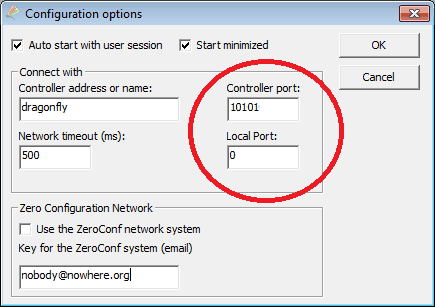
- In the Dragonfly client software, set the port to 0—the system will then look for a suitable one.
- Save the settings and reconnect.
If the ping or web test report problems
If, however, the ping or web test report problems, a hardware issue is probably the cause. Check cables, try a different router / switch port, and have your Dragonfly serviced if needed.
- Hostname not resolving: try accessing the device by IP address directly instead of the hostname. You can find the IP in your router's DHCP client list.
- Windows network discovery: Windows security policies can make simple devices harder to find on the network. See the network accessibility guide for the hosts-file fix.
Still not connecting?
If the Dragonfly cannot be found in the network at all, a script run from a USB pen puts it back on automatic (DHCP) addressing without opening the box—see the factory network reset guide.
For persistent problems, contact the support team via the Lunatico support portal with your firmware version and network setup details.